 BackInTime
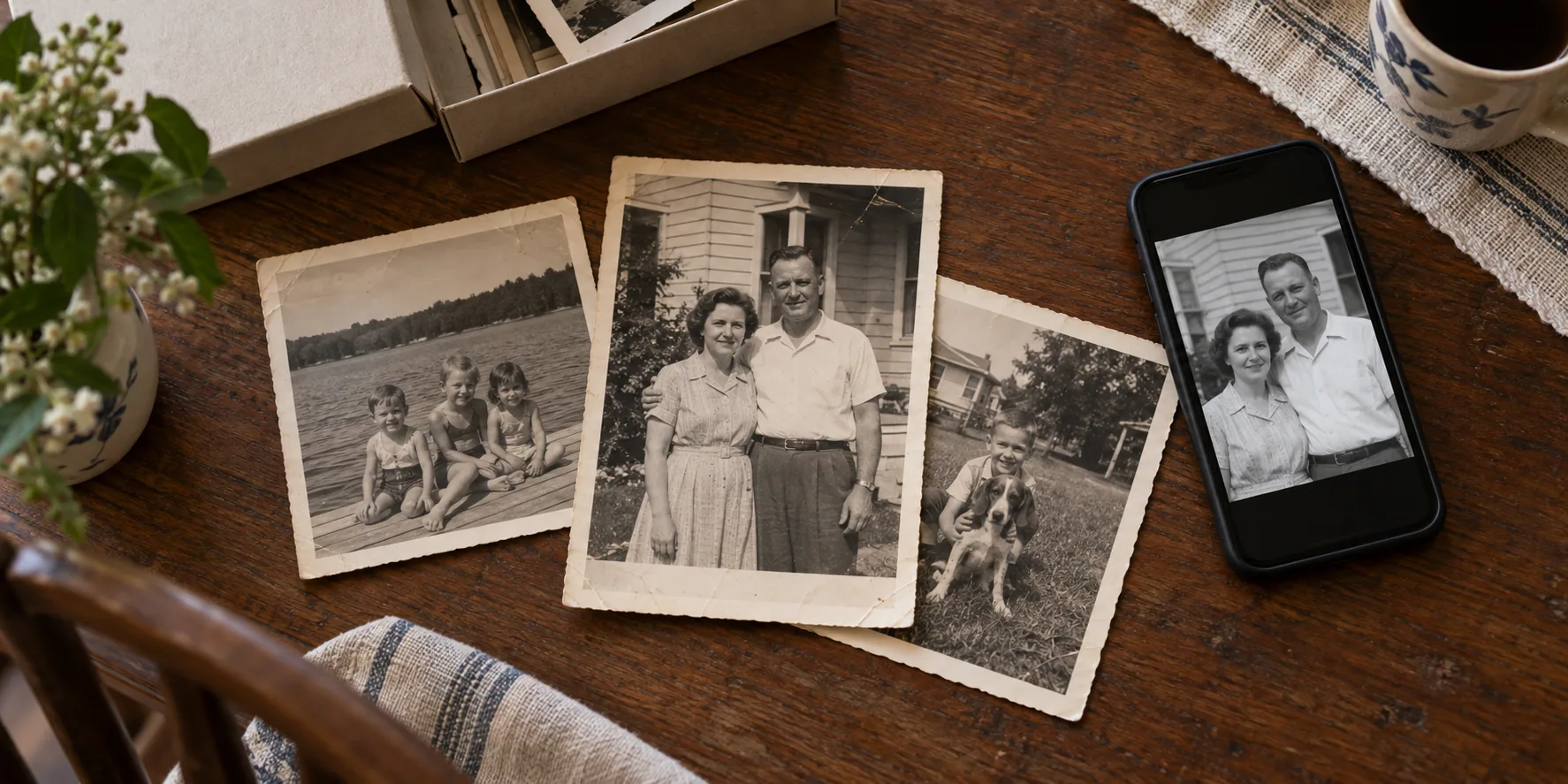
Best Photo Restoration App: Find the Right Fit
The best photo restoration app depends on what your photograph needs. A box of unscanned prints, a blurred portrait, and a wedding photograph torn across someone’s face are different jobs. Start with the damage, decide what must stay unchanged, and then choose a tool whose controls and costs fit the task.
Published by the BackInTime team. This guide compares official product information checked on 29 September 2026; it is not a hands-on ranking. We have not run a shared photo benchmark across these tools. All images, including the hero, are AI-generated editorial illustrations, not customer photographs or app results.
Match the app to the photograph
Scanning creates a digital copy. Enhancement changes its appearance. Restoration repairs visible damage in that copy. A product may combine these jobs, but an impressive demonstration of one does not establish how well it handles the others.
Look at the original before uploading. Fine scratches call for local repair. Fading calls for tonal correction. A blurred face needs careful comparison with the surviving features. Missing paper presents a different limit: new pixels cannot establish what was actually in the lost area. Colorizing a monochrome print also involves interpretation; plausible colors are not proof of historical colors.
This uncertainty is a recognized research problem. The CodeFormer paper describes a trade-off between visual quality and fidelity in face restoration. That is a reason to inspect results from any AI tool, including BackInTime, rather than assume that extra sharpness means extra truth.
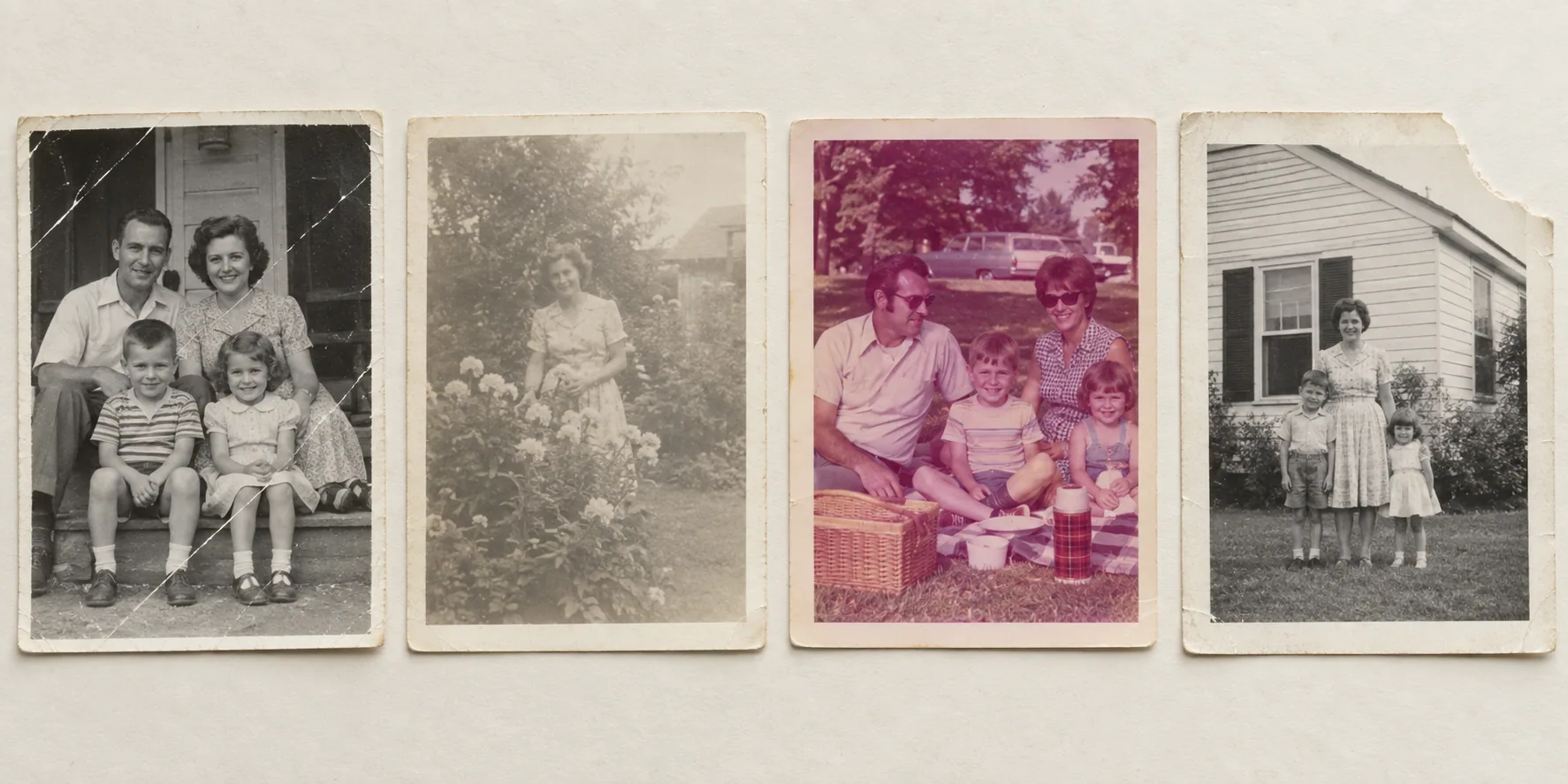
AI illustration: damage categories, not a restoration test.
A shortlist built around different jobs
These are candidates for different workflows, selected from their documented capabilities. The cautions are things to check in your own trial, not measured shortcomings.
| Your starting point | Tool to consider | Documented capability and buying check |
|---|---|---|
| Albums that still need digitizing | Photomyne | Scanning, organization, editing, and backup options. Check which enhancements and export features your membership includes. |
| A digitized portrait to enhance | Remini | Face enhancement, old-photo restoration, and other enhancement tools. Compare facial details against the original before accepting the result. |
| Scratches and damaged scans | VanceAI Photo Restorer | Advertises scratch, tear, and stain repair; a Windows product offers batch restoration. Check the relevant web or desktop plan and credit rules. |
| A scan needing selective manual work | Adobe Photoshop | Photo Restoration Neural Filter, layers, Spot Healing Brush, and Clone Stamp. Allow time to learn and inspect the edits. |
| Restored photos kept with family context | BackInTime | Its public site describes restoration, colorization, Stories, and family sharing, with restoration credits separate from storage subscriptions. Mobile apps are listed as coming soon; verify availability. |
Photomyne is a logical candidate when capturing an album is the first obstacle. Remini and VanceAI offer different entry points for already digitized images. Photoshop offers selective editing when an automatic pass needs correction. BackInTime’s advertised workflow connects restoration with the people, places, and stories around the picture. These are workflow distinctions, not evidence of a quality winner.
A human retoucher is another option for difficult or important images. Ask for a quote and an explanation of which details will be reconstructed. Digital retouching does not stabilize a physically damaged original; our guide to manual, digital, and AI restoration explains the distinction.
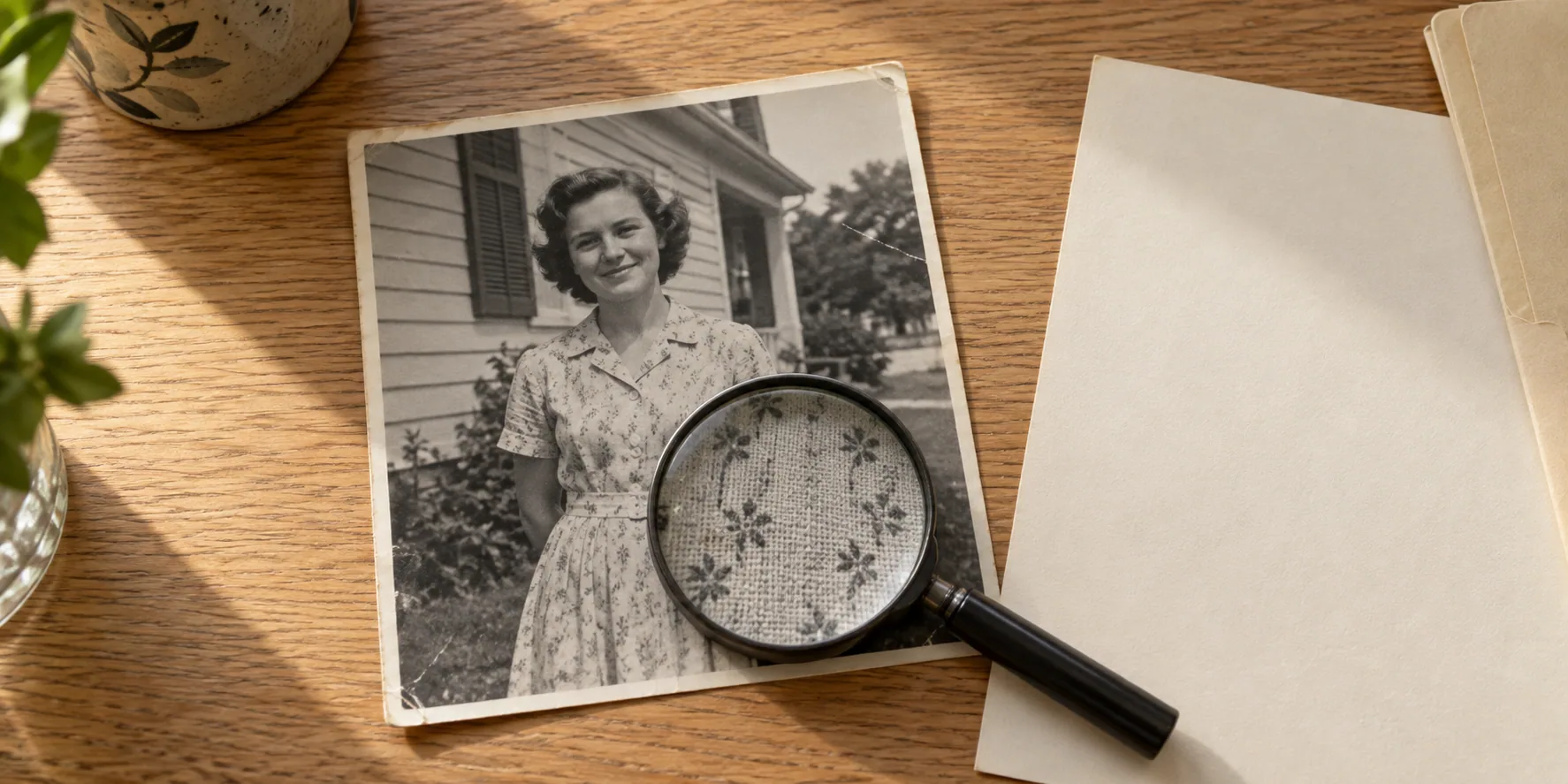
AI illustration: inspect the details that make a person recognizable.
Compare the saved result, the bill, and the privacy terms
Before paying for an album, try the same small set in each candidate: a single portrait, a group, a faded color photo, a scratched print, and a scene without faces. Keep identical input files and record the settings. Examine downloaded files at the same displayed size, then inspect them at full resolution.
Use the same eight checks each time:
- Facial accuracy: do eyes, lips, teeth, and hairlines still match the original?
- Texture: do skin, clothing, and backgrounds retain convincing detail?
- Color: does an existing color photograph remain credible? Treat newly added colors as interpretation.
- Damage removal: are scratches reduced without erasing nearby features?
- Time: record upload, processing, and any manual correction separately.
- Output: check saved pixel dimensions, file format, watermarks, and export limits.
- Privacy: read the applicable policy for retention, training use, sharing, and deletion.
- Cost: count the total payment needed to obtain the files you actually keep, including retries or extra operations.
A free download or preview does not establish that full-resolution exports are free. Read the purchase screen for the billing period, renewal terms, and platform-specific restrictions. Avoid comparing an introductory weekly price with another product’s annual total.
Human work has different economics. As checked on 29 September 2026, ScanCafe’s restoration page lists basic work at US$3.00–18.14 and advanced work at US$48.39–60.49, with individual quotes. These are one provider’s published ranges, not a market average or a like-for-like comparison with an app subscription. Confirm scanning, delivery, and printing charges separately.
Keep an original worth returning to
Begin with a careful scan or photograph, save it unchanged, and edit a duplicate. Keep the physical print too: the US National Archives advises retaining originals after digitization, adding identifying information, and backing up digital files.
Save the restored version alongside its source. Record names, approximate dates, places, and any edits that change interpretation, particularly added color or reconstructed features. A relative may be able to identify a face or a dress that no app can verify.
The right tool is the one that produces a result you can inspect, afford, export, and keep with its history. For BackInTime, the reason to restore a photograph is the memory it carries. A clearer image matters most when the person and the story remain recognizable.
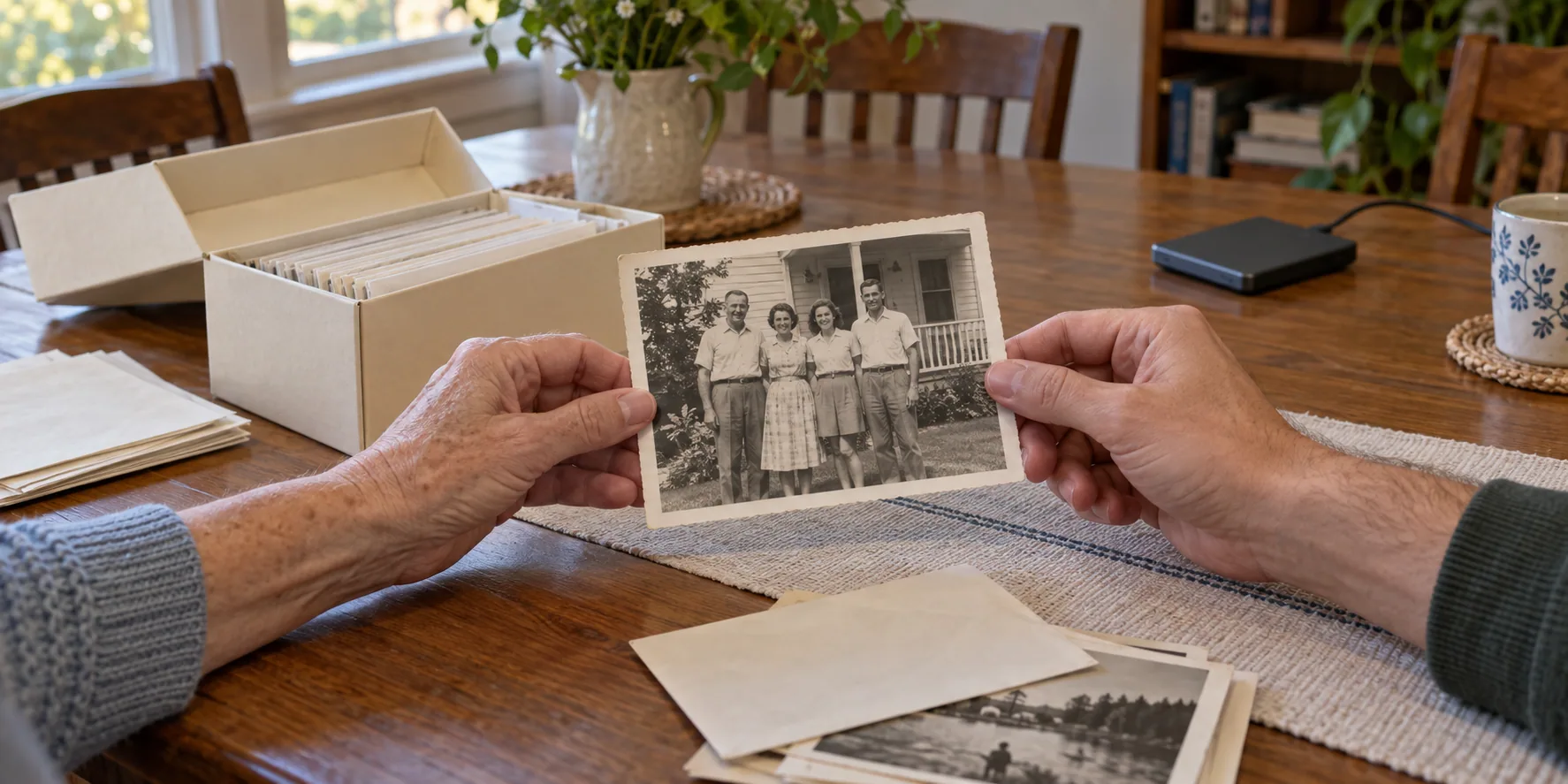
AI illustration: keep the original, the digital copy, and the family story together.