 BackInTime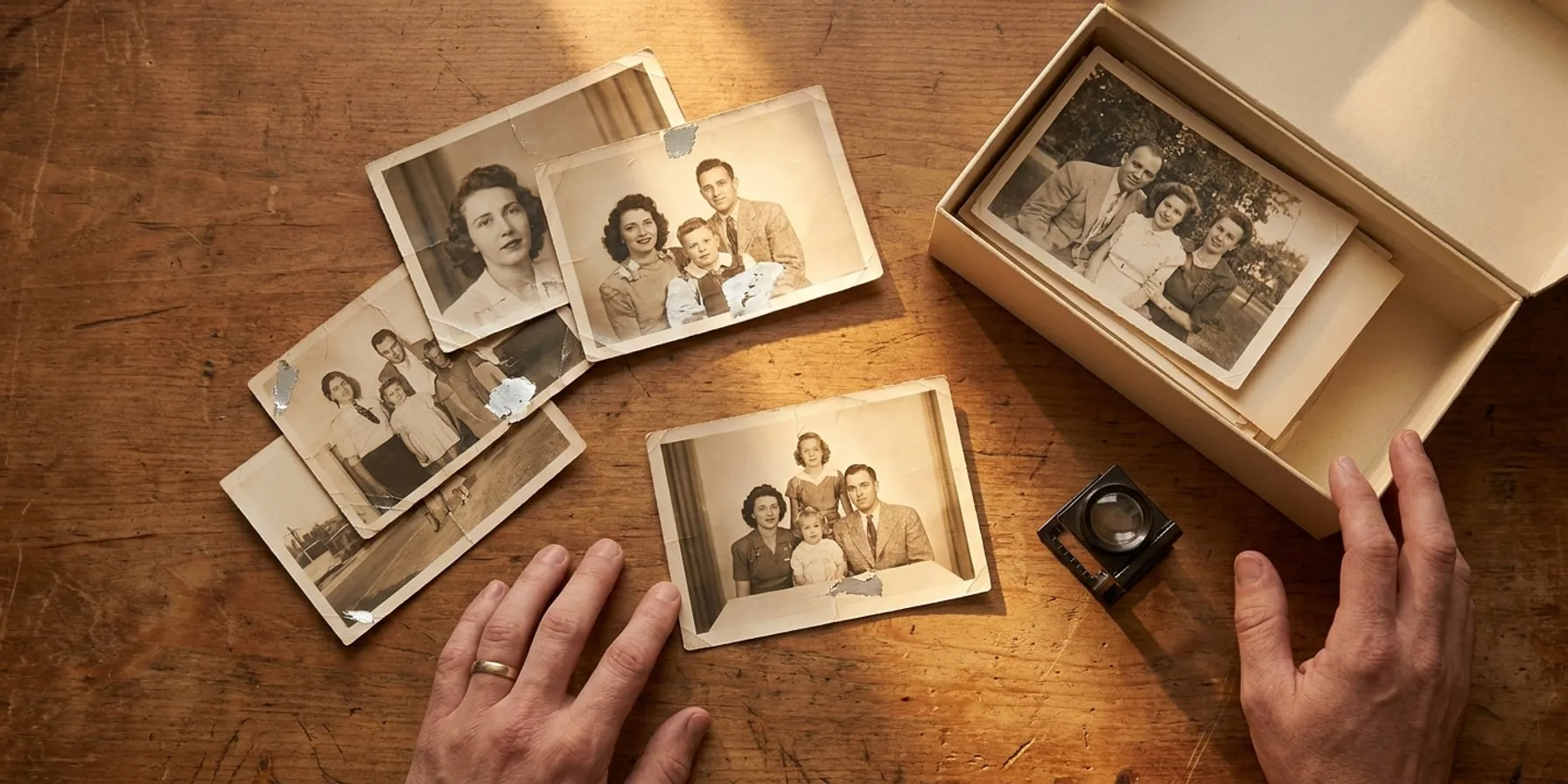
Why Old Photos Turn Yellow — and How to Preserve Them
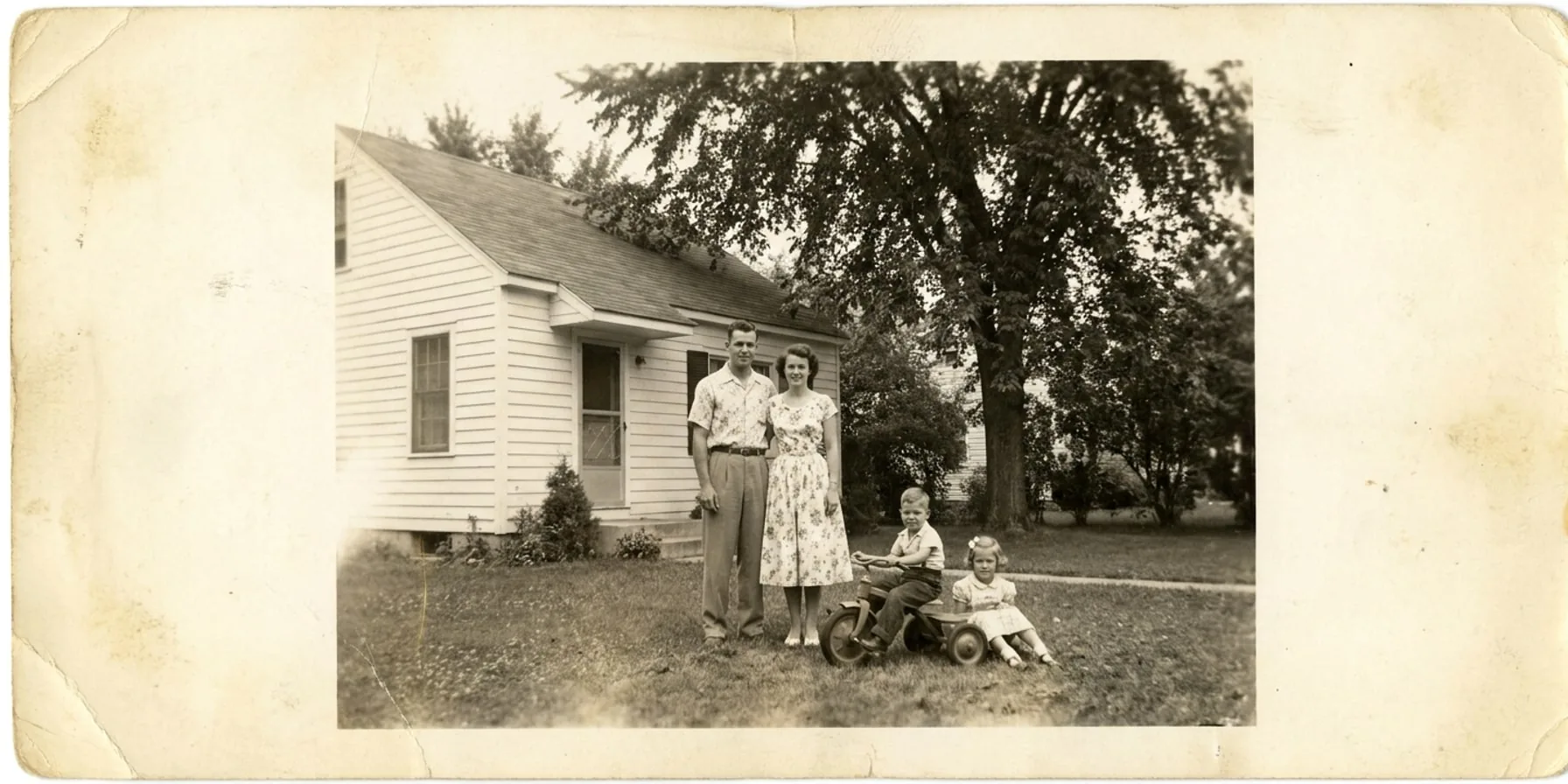
In an old family photograph, white paper may have turned cream and dark areas may look brown. These changes happen as the materials in the print react over time.
Most twentieth-century family photographs have several layers: a paper base, sometimes a baryta coating, and a gelatin emulsion holding the image. In black-and-white silver-gelatin prints, the image is made of metallic silver. Colour prints use dyes. Damage to any of these layers can change the picture you see.
Why prints turn yellow
Yellowing often has more than one cause. One is fixer left behind during processing.
Darkroom fixer, commonly sodium thiosulfate or “hypo,” removes unexposed silver halides that would otherwise darken in light. If washing is incomplete or the fixer is exhausted, thiosulfate and silver-thiosulfate residues can remain in the paper. Over time they damage the image silver, causing yellow-brown stains, faded highlights, and reduced contrast.
Airborne pollutants can damage a well-washed print too. Sulfur compounds and oxidants may come from pollution, rubber bands, poor-quality cardboard, or some plastics. They can cause fading, discolouration, or a metallic sheen called silver mirroring.
The paper matters as well. Lignin in wood-pulp paper can break down into yellow-brown compounds and acidic byproducts that affect the gelatin binder.
Colour prints have an additional problem: their dyes fade at different rates. Many chromogenic prints from the 1960s and 1970s develop a red or magenta cast as cyan dye fades in dark storage. Light exposure can produce a different shift, including greenish-yellow tones as magenta fades.
These changes happen within the materials. Trying to wipe away the yellowing will not reverse them.
Storing photos at home
You can slow deterioration by controlling heat, humidity, light, and contact with damaging materials.
Choose a cool, dry interior cupboard with steady conditions. Attics, basements, and garages often have large temperature or humidity swings. Around 18 to 20 °C and 30 to 50% relative humidity are useful targets where practical. Very dry conditions, below about 20% relative humidity, can make gelatin brittle. Colour prints and negatives benefit from cooler storage where it is manageable.
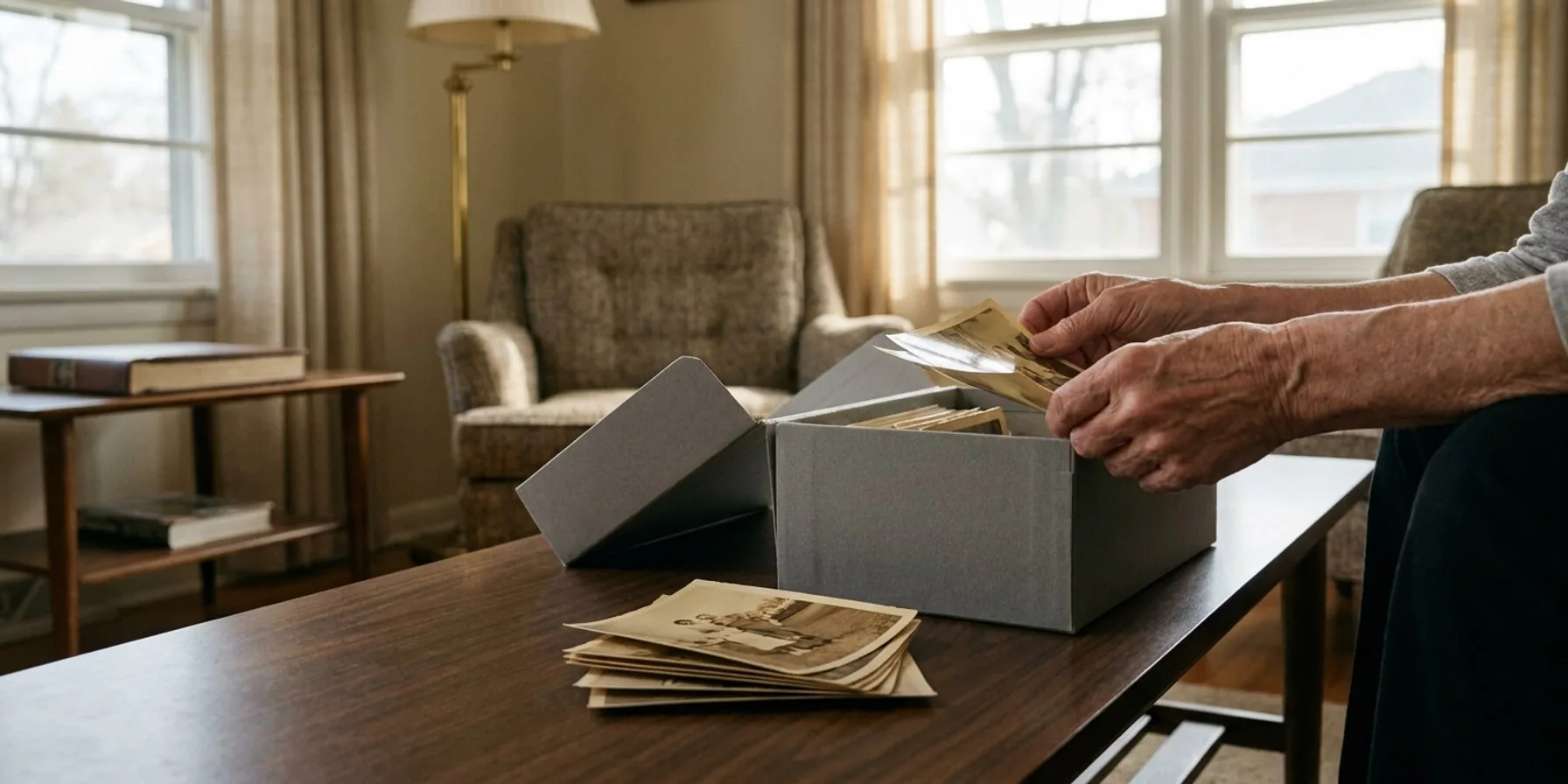
Keep prints flat in acid-free, lignin-free boxes. Suitable sleeve materials include polyester (Mylar or Melinex), polypropylene, and polyethylene. Avoid PVC, which can release compounds that damage photographs.
For materials that touch the print, look beyond an “acid-free” label. Products tested with the Photographic Activity Test (PAT, ISO 18916) have been assessed for their interaction with photographs. The Image Permanence Institute provides information about the test.
Sticky-page or “magnetic” albums can damage prints. Remove photos gently where they come away easily. Do not laminate old photographs or repair them with office tape, masking tape, or rubber cement. These adhesives can leave permanent stains and be harder to address than the original tear.
Handle prints by the edges with clean, dry hands or well-fitting nitrile gloves. Cotton fibres can catch on damaged surfaces, and loose gloves make brittle paper harder to handle. Keep fingertips off the image surface, where oils can leave marks.
Making a digital copy
A good scan gives you a copy to work with while you keep the original safely stored.
For typical family prints, 600 ppi is a useful starting point. Small or detailed prints may need more; large prints with little fine detail may need less. For 35mm negatives and slides, consider 2400 to 4000 ppi. Check the scanner’s optical resolution: software upscaling adds pixels without capturing more detail.
Use a flatbed scanner or a careful camera-copy setup. A sheet-fed document scanner can damage an old print.
Save a master scan as an uncompressed TIFF at the highest bit depth the scanner supports, typically 16-bit greyscale or 48-bit colour. Disable automatic sharpening, dust removal, and colour correction for that master. Do restoration work on a separate copy.
JPEG is convenient for viewing and sharing. Repeated editing and saving can discard information through compression, so keep the master file too.
Keeping digital copies safe
The 3-2-1 backup rule means keeping three copies on two types of storage, with one copy offsite.
Cloud sync services such as iCloud, Google Drive, and Dropbox can help, but a deletion may sync along with your changes. Keep a separate backup, such as an external drive that you disconnect after use. Check the files every few years and replace failing storage.
Record names, places, and approximate dates in the image metadata or in a text file beside the photos. Someone looking at the scan later may need those details to identify the people in it.
Restoring the scan
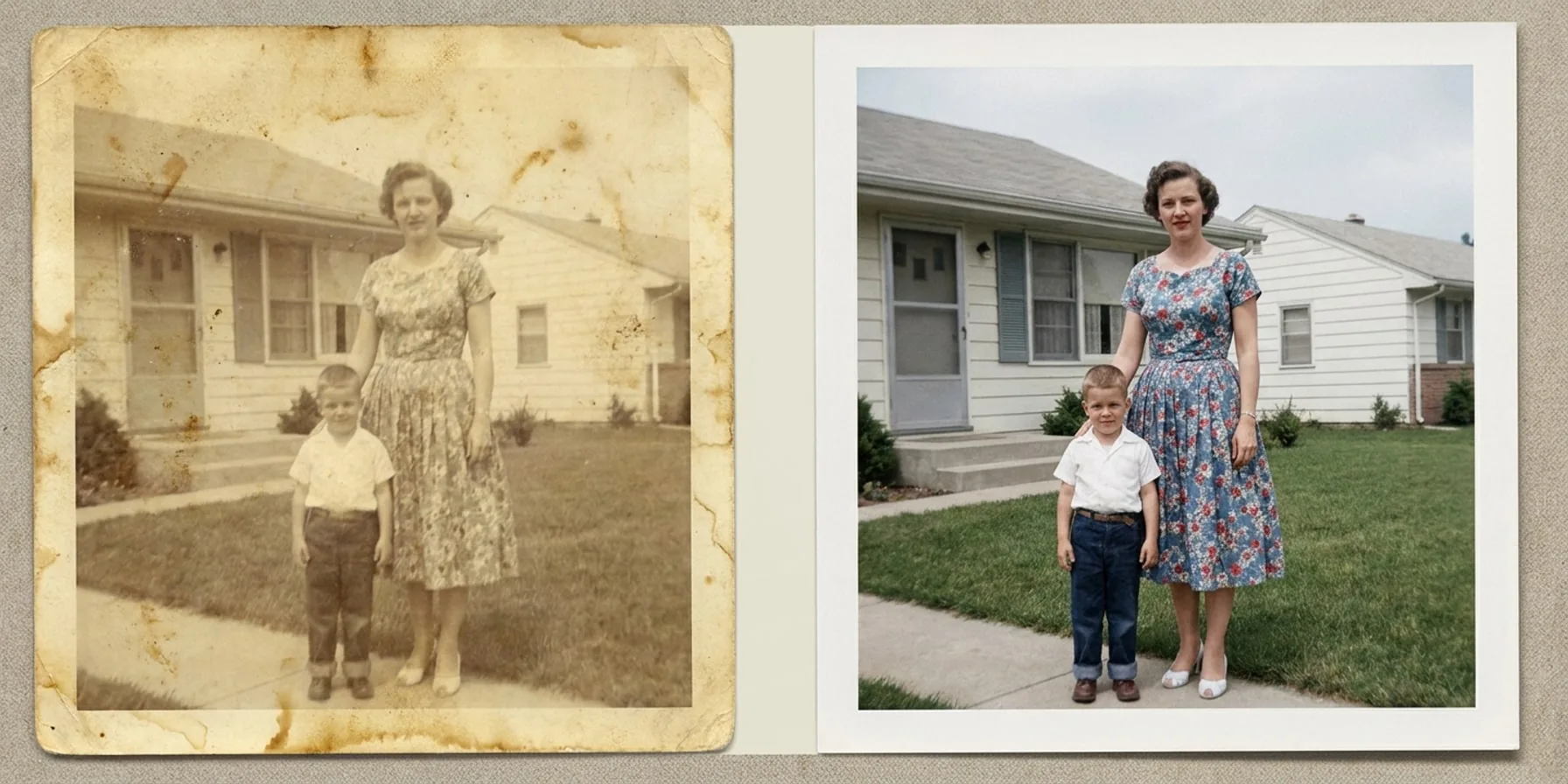
BackInTime can help reduce staining and improve contrast in a digital copy. Added colour is an interpretation of a scene whose original colours may no longer be known.
Editing the scan does not repair the physical print. Keep caring for the original and save an untouched scan alongside any restored version.
For the next steps, our guide to restoring old photos walks through choosing repairs, checking the result, and saving both versions.